To put handwritten notes into Obsidian as text on iPhone, photograph the pages with Extract Text in Vox.md, review the recognized text in the draft, and send it to a Route that writes into your vault. Use Scan Document when you also want the page image or a PDF kept with the text.
“Handwriting in Obsidian” can mean two different things, so start with the one you need.
Writing in Obsidian or digitizing paper?
- I want to draw or write with a stylus inside Obsidian. Community plugins do this. Ink lets you handwrite or sketch with a stylus between the paragraphs of a note, and Excalidraw brings a sketching tool into Obsidian, with drawings kept in your vault. Those are good fits for ink you want to stay as ink. This guide does not cover them further.
- I already write on paper and want the words as text. That is what the rest of this guide covers: notebooks, journals, whiteboards and meeting pads photographed on your phone and turned into Markdown you can search and link.
| Approach | What you get | Good for |
|---|---|---|
| Stylus plugins such as Ink or Excalidraw | An ink or drawing file in the vault | Writing or sketching in Obsidian itself |
| Apple Live Text, then paste | Plain text you copy by hand from a photo | A few lines, one at a time |
| Vox.md Extract Text | Plain text, added to your draft and sent to a Route | Several pages of notes into one note |
| Vox.md Scan Document | Text plus the page images and a PDF | Pages you may need to check later |
Apple’s support page on Live Text describes copying text from a photo and pasting it into another app. Vox.md’s text recognition uses Apple’s Vision framework.
Before you start
- In Vox.md, choose your Obsidian vault folder, or any writable Files folder. No Obsidian plugin or account is needed.
- Open Routes in Settings and make one for paper notes. Two examples: a New Note route into
Inbox/Handwritten, or a Rolling Note route that places text under a## Notebookheading in your daily note. - Allow camera access when iOS asks. It is only needed to photograph pages.
For daily-note paths and heading placement, see append to an Obsidian daily note. For inbox and journal structures, see capture templates. The basics of sending a capture are in Obsidian quick capture on iPhone.
Photograph your pages
- Open Quick Capture and choose your paper-notes Route.
- In the Capture Bar, tap Extract Text, then Capture Journal Pages.
- Frame a page and press the shutter. The camera takes a photo only when you press it. Repeat for each page, up to 10 pages per capture.
- Finish the capture and wait for the on-device text extraction banner to finish.
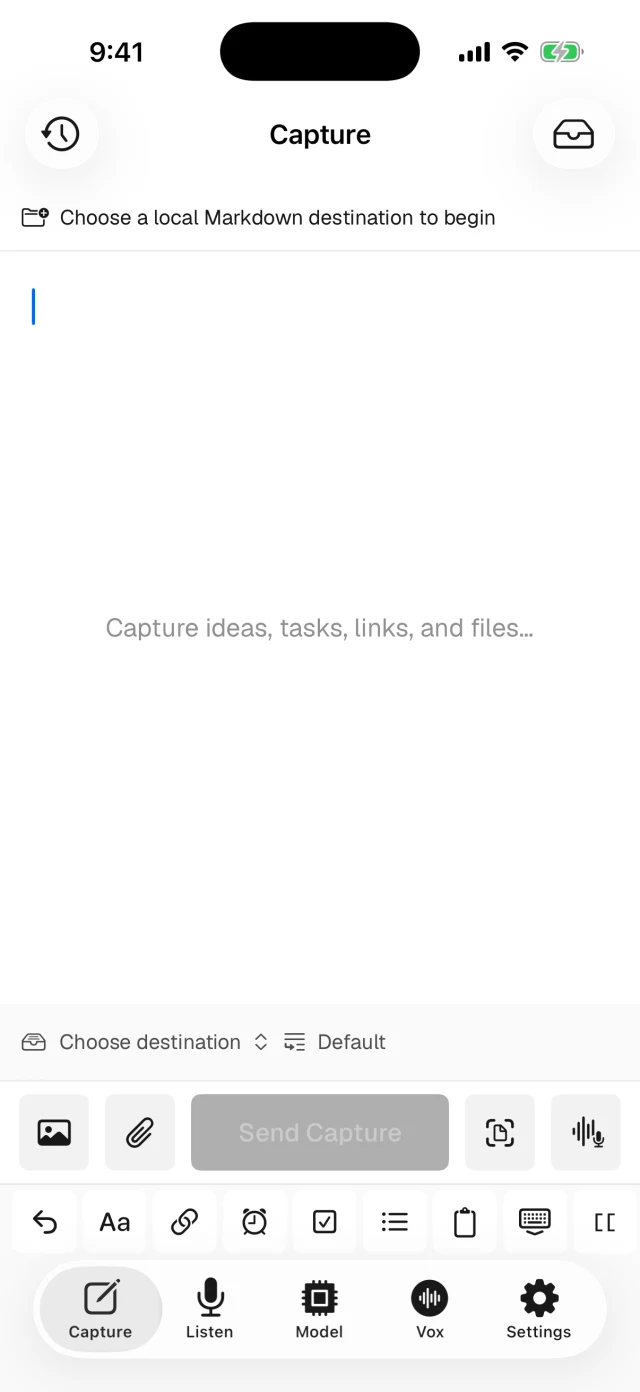
Photo tips: use even light, lay the page flat, make the writing fill the frame, and take one page per shot.
You cannot extract text while a voice capture or transcription is in progress. Finish that first.
Review the recognized text
The recognized text is added to the Capture draft as editable Markdown. Read it against the page before you send it. Fix names, dates, numbers and crossed-out words, and add headings or list markers where you want them.
Vox.md uses Apple Vision text recognition at its accurate level, with language correction and automatic language detection, all on the device. Results vary with how legible the writing is and which language it is in, so treat the output as a first draft.
Extract Text adds text only. It does not attach the page images.
Keep the original page
Choose Scan Document instead when the page itself matters: signatures, diagrams, sketches, or legal and financial pages. It keeps the page images, creates a PDF, and adds best-effort recognized text. Review that text too before sending.
Where the images and PDF are written depends on the destination’s attachment settings. Save links, photos and scans to Obsidian explains attachment paths, and Obsidian’s help page on attachments covers how Obsidian treats them.
Route the text into your vault
A Route decides where the text lands. These outputs are illustrative; your words, dates and existing note content will differ.
Recipe 1: one note per notebook session
Use a New Note Route, and put source: paper in the Route’s metadata with Note Frontmatter. Each capture becomes its own file:
---
source: paper
---
Call with Priya, Tuesday
- Ship the pricing page by Friday
- Ask Sam about the 2027 budget
- Book flights for March
Recipe 2: append to today’s daily note
Use a daily Rolling Note Route with Heading placement for a level-two Handwritten heading. In the heading options, choose Create Heading if you want Vox.md to add it when it is missing.
# 2026-11-20

## Handwritten
Morning pages: slept badly, walk helped.
Idea for the newsletter: one tip per issue.
Recipe 3: meeting-pad notes into the meeting note
Use an Existing Note Route pointed at the meeting note, with Heading placement under ## Notes. Photograph the pad after the meeting. The template generator for meeting notes can create the note structure.
## Notes
Agenda: launch checklist
- Design sign-off done
- Docs still need a review
Optional: process the text
Processing is off unless you turn on Use Apple Intelligence in the Route. Then Apply To chooses what it processes: Voice & Text (the default), Voice Only or Text Only. Text extracted from photos counts as text. With Use Apple Intelligence on and the Todo Checklist mode chosen, your recognized text can be turned into a checklist. Apple Intelligence needs compatible iOS 26 hardware; the Routes section of the docs describes the details and fallbacks. Leave it off to keep the recognized text exactly as extracted.
Photos you already have
If you photographed pages earlier, tap Extract Text and then Choose Journal Photos to pick them from your photo library. The same limits apply: up to 10 pages per capture, so a larger backlog takes several captures. There is no batch import of a whole library.
Privacy
- Text recognition runs on the device. Page content is not sent to Vox.md servers for it.
- The text goes only to the folder you chose. If that folder syncs through iCloud Drive, Obsidian Sync or Git, that provider handles it under its own terms.
- See the privacy policy and the Quick Capture docs.
Troubleshooting
“No text was found in those journal images.”
Try brighter, straighter photos with the writing filling the frame.
Words come out wrong or in the wrong language
Retake the page in better light, or fix the words in the draft before sending. Recognition depends on legibility and language.
Extract Text is unavailable
A voice capture or transcription is in progress. Finish it first, then try again.
My heading is missing in the note
Open the Route’s heading placement and set the missing-heading option to Create Heading, or add the heading to the note yourself.
Does it cost anything?
Capture needs Vox.md Unlimited, with a 7-day free trial for eligible accounts; see the docs for current details.
Turn tonight’s notebook page into Markdown
No plugin or account needed. Capture is free to try with 10 deliveries.