Use built-in Obsidian capture for a straightforward note, Shortcuts for a repeatable sequence of actions, and Vox.md when you want its preset processing and Markdown-folder routing. Start with the note you want to see at the end, rather than a particular widget or app.
This guide helps you choose a method. The linked tutorials cover the detailed Vox.md setup, so you do not need to read the full reference documentation before making your first capture.
Choose by the task
- A short typed thought: try native Obsidian capture before adding a separate app.
- The same set of actions every time: explore a Shortcut that receives text and sends it to your chosen destination.
- Voice into a vault: check native voice availability in your Obsidian version, or follow the Vox.md iPhone voice guide.
- A thought recorded on Watch: see the Watch recording and iPhone delivery guide.
- Transcription without connectivity: prepare a backend and destination with the offline transcription guide.
- Links, photos and scans: follow the media capture guide and check the attachment output.
- A reusable entry format: start with the inbox, journal and task recipes.
- Entries beneath a daily-note heading: follow the daily-note path and placement recipe.
To compare the native app and Vox.md directly, read Vox.md vs Obsidian Quick Capture. It separates documented features from assumptions about what an app cannot do.
Start with built-in Obsidian capture
Obsidian’s iOS guide covers Quick Capture, widgets and sharing. Quick Capture requires Obsidian 1.14+ and iOS 26+. Configure a capture location and try a short note before setting up additional tools.
Native voice capture is announced in Obsidian 1.15 mobile early access, including live transcription on iOS 26. Check the installed version and release channel; the presence of a tutorial about voice does not mean the feature is available in every stable build.
If you are saving a page or link from another app, also check Obsidian’s native sharing controls. Your goal may be a saved URL or extracted page content. Those are different outputs; a capture app accepting a link does not necessarily save the full article.
Use Shortcuts for a repeated workflow
Apple’s Shortcuts guide explains how actions connect into a workflow. A Shortcut can be useful when you want the same input prompt, formatting step, and app action each time. What it can do depends on the actions exposed by the installed apps and the permissions you grant.
Look for the destination app’s current actions in Shortcuts. Keep the first version short: obtain text, send it to the chosen note, and check the file. Add another trigger only after the basic workflow works.
For custom integrations, Obsidian also documents an URI scheme for opening, creating and appending to notes. URL parameters must be correctly encoded. A custom URI is an automation option, not a guarantee that the app will stay closed or that an unavailable vault can be written.
Lock Screen, Action Button and unattended recording behavior depend on the installed action, permissions and OS. Test the exact trigger you intend to use. Do not treat a listed action as proof that background recording works on every device.
Use Vox.md for preset-based capture
Vox.md combines capture, optional processing, and delivery in a Capture Preset. Choose a vault or another writable Markdown folder, configure a new, rolling, or existing note, then choose the placement and entry format.
One preset might append unprocessed thoughts to an inbox. Another might format tasks beneath a Tasks heading. The Quick Capture composer accepts text, media, scans, sketches, files and voice, with local voice transcription after backend preparation.
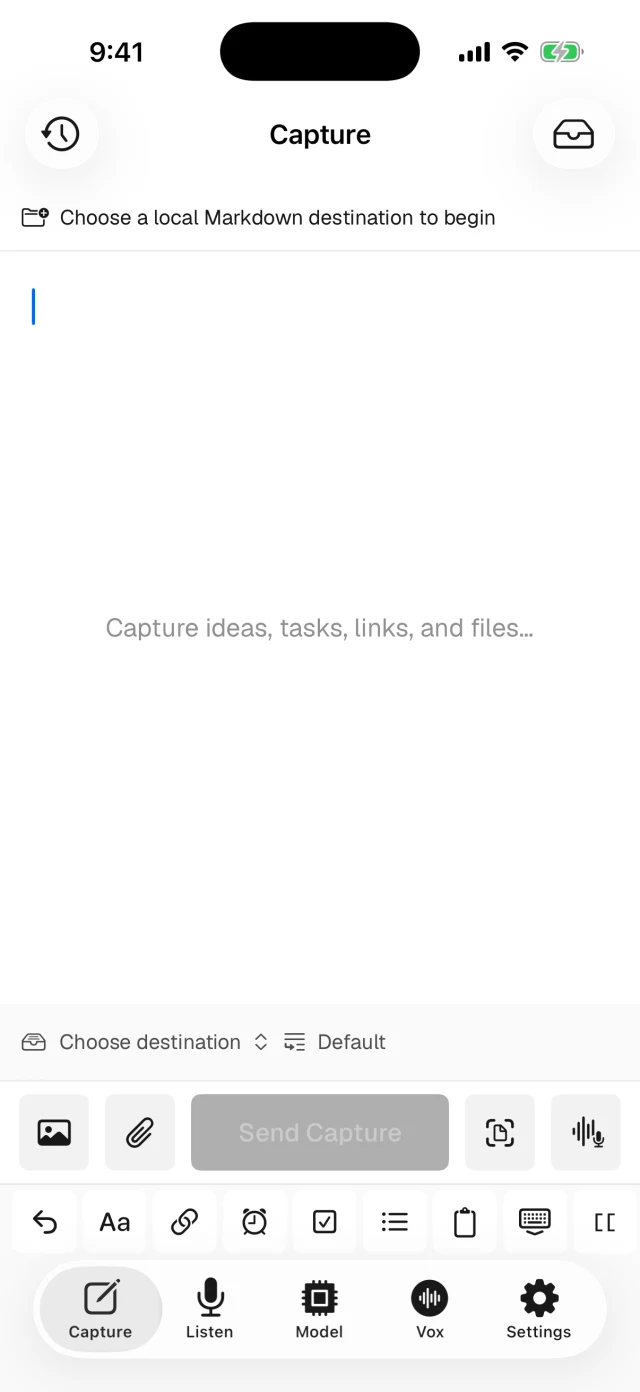
You need a folder exposed through Files and permission to write there. Vox.md does not connect directly to the Obsidian Sync service. A vault that only the Obsidian app can access may be better served by a native action.
Vox.md is a free download with 15 transcription minutes and 10 successful Capture deliveries. Unlimited use is a one-time lifetime purchase. Start with the allowances and confirm the route rather than configuring several untested presets.
Check one capture from start to finish
Use a disposable note or clearly named inbox for the first attempt. The following is a sample acceptance check, not a claim about measured speed:
- Capture a short line such as “Check the train times.”
- Confirm which app received it and which file was written.
- Open that file in Obsidian and verify the text, heading and formatting.
- Send a second line and check whether it appends, prepends or creates another file as intended.
- For voice, inspect recognition and audio retention. For Watch, check that the iPhone completed delivery.
A simple configured inbox could contain this illustrative result:
## Inbox
- Check the train times
- Pack a notebook
If you want that pattern in a daily note, match the existing folder, date convention and heading. The daily-note tutorial walks through a concrete route.
Common questions
Do I need an Obsidian plugin?
Not for Vox.md’s direct Markdown-folder delivery. Your chosen workflow still needs folder access and a valid destination. A separate plugin or custom Shortcut may be useful for other workflows, but it is not a prerequisite for this route.
Will my notes sync to my other devices?
Capture and sync are separate. Check how your vault already syncs, then confirm the captured file arrives on another device. Vox.md does not replace a sync provider, and local transcription does not prevent a selected provider from receiving completed notes.
Can I capture while offline?
For Vox.md, prepare the speech backend first and ensure the folder is locally writable. A provider may need connectivity for access or later sync. Evaluate offline behavior with your actual folder and selected model rather than assuming every capture method behaves the same way.
Can I use more than one method?
Yes. You might use a native widget for short typed entries and a Vox.md preset for a different route. Check that both methods target the intended file and use compatible date and formatting conventions.
Choose one route.
Make the next capture easy.
Start with the smallest workflow that produces the note you want, then add voice, media, or another entry point when you need it.