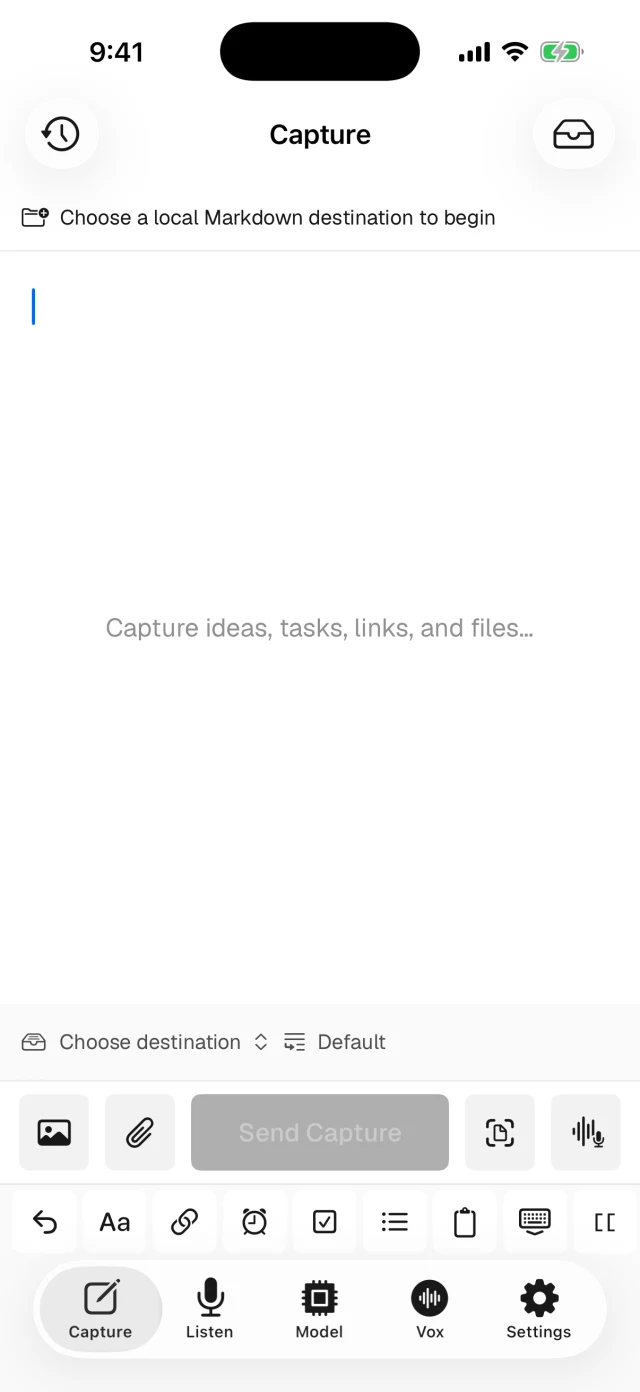
Connect a Vox.md Capture Preset to a writable vault folder, add a URL, photo, file or scan in Quick Capture, and send it. The preset chooses the note and attachment location. Review the delivered Markdown and confirm that its attachments open in Obsidian.
Saving a link and saving an article are different tasks. Vox.md accepts web URLs as Markdown links; do not assume that adding a URL downloads or extracts the entire page. Choose the capture method for the material you want to keep.
1. Prepare the vault destination
In Settings → Capture Presets, create or choose an enabled preset and connect its destination through Files. Select the folder containing your vault’s Markdown files. If the folder is not exposed to another app, Vox.md cannot write into it just because it is visible inside Obsidian.
For the first example, choose New Note and Keep Original processing. A separate inbox folder makes mixed captures easy to find. You can later choose a Rolling Note or Existing Note when you want material added to the same file.
Set an attachment subfolder in the destination settings; the default is attachments. Check the resolved note path and attachment rules before sending. For a daily journal, follow the daily-note routing guide.
2. Save a web link
Copy the URL you want to keep. In Quick Capture, use the Web Link control and review the link text and address. Add a short explanation of why you saved it, then Send.
A simple note might contain this illustrative Markdown:
Read before planning the trip:
[Trail information](https://example.com/trail)
The address above is an example, not a resource recommendation. Replace it with the actual page. A link gives you a route back to the source; it does not preserve the source’s contents if that site changes or disappears.
Vox.md’s Share Sheet also accepts supported content from other apps. What an app shares can be a URL, text, or a file. Review the received payload and selected preset rather than assuming that everything visible on the source screen was included.
3. Add a photo, screenshot, or file
- Select the preset for your inbox or project note.
- Use the photo or screenshot picker, camera, or Add Files control to choose the material.
- Add a short title or explanation in the composer.
- Send, then open the note in Obsidian and check the embedded image or file link.
Images are embedded in the Markdown output. Other file types use links. For example, a note could reference a configured attachment path like this:
## Reference
![[attachments/whiteboard.png]]
[[attachments/brief.pdf]]
These are illustrative filenames and paths; Vox.md’s actual output depends on the selected files and destination rules. Keep the referenced files with the vault. Moving only the Markdown file to another folder can break relative links.
Try 10 successful Capture deliveries and 15 transcription minutes. Unlimited use is a one-time lifetime purchase.
4. Scan a document and review OCR
Choose Scan Document in the Capture Bar and follow the scanner. Vox.md preserves page images, creates a PDF, and includes best-effort on-device text recognition. Review the recognized words before sending, especially names, dates, amounts, and handwriting.
For journal photos, the separate Extract Text flow supports manually captured or selected pages. OCR can miss structure or misread a word even when the image looks clear. Keep the source image or scan when you need to verify the text later.
Choose Keep Original if you do not want optional processing to rewrite the captured text. Typed and mixed-text processing is a separate preset opt-in. The capture reference describes supported inputs and the input limits.
Check attachments and synchronization
After delivery, open the note in Obsidian, follow each link, and confirm that the intended file is present. A note appearing on another device does not prove every attachment has finished syncing. Check the image or PDF on that device too.
A failed write can remain pending in Vox.md. Fix destination access and retry the existing capture before creating another copy. Files stored with a cloud provider can need connectivity for access or synchronization, even though the capture processing itself is local.
If you need full web-page extraction, compare the relevant tools directly. Obsidian documents its native sharing options in the official iOS guide. You can use native sharing for one task and a Vox.md preset for another.
Keep the context.
Put it beside the note.
Try a small capture with one link or image, then check the complete file and attachment output.