Connect a Vox.md Capture Preset to your vault, choose a Rolling Note with a daily period, and match its path to your existing daily-note filenames. Use Bottom to append to the note, or Heading to insert beneath a named section. The same destination can accept text and voice captures.
This guide focuses on routing and formatting. For recording and model setup, start with iPhone voice notes to Obsidian. Obsidian also has its own daily-note capture tools; you do not need Vox.md for every append workflow.
1. Match your daily-note path
Find an existing daily note in your vault and check its folder and filename. This example assumes Journal/2026-10-26.md. Keep your own convention if it differs.
- Open Settings → Capture Presets in Vox.md. Create or edit an enabled preset, such as Journal.
- Connect its destination to the vault folder using Files. That folder must be exposed to Vox.md and writable.
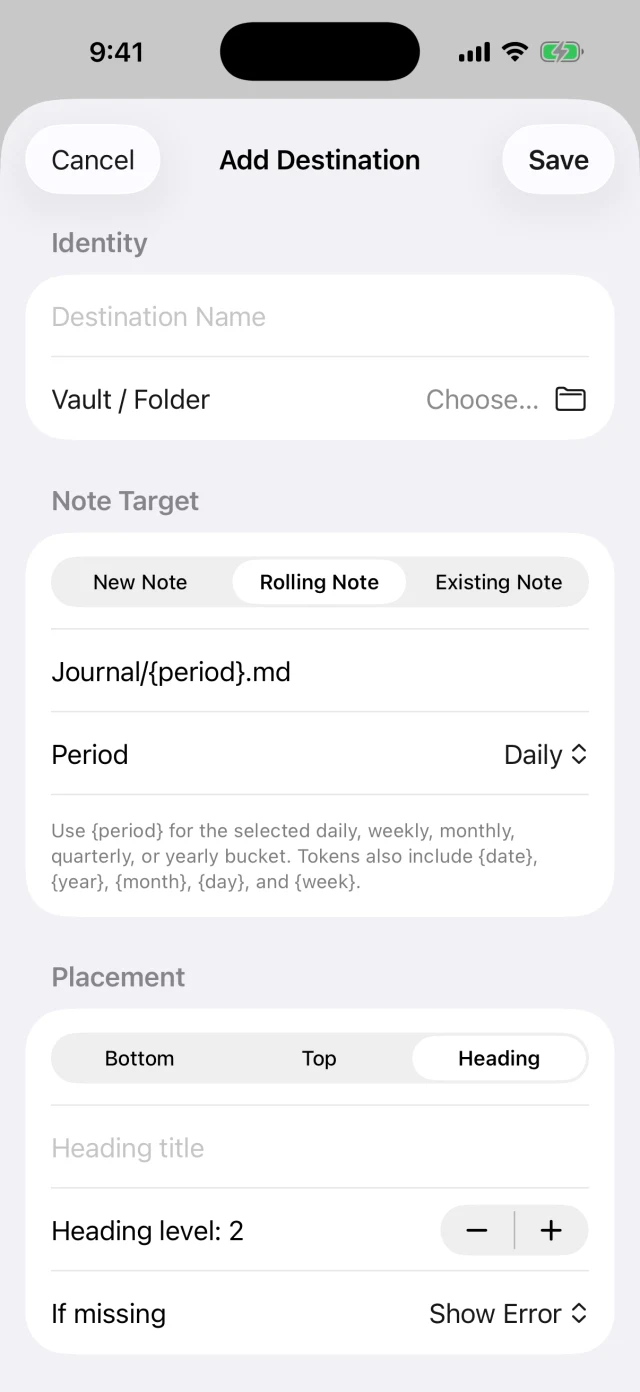
- Choose Rolling Note and the Daily period.
- For the example convention, set the path pattern to
Journal/{period}.md. Review the resolved destination before sending.
With a daily period, {period} resolves to a date such as 2026-10-26. A vault that stores daily files at its root would instead use {period}.md. These are Vox.md path tokens, not Obsidian template expressions.
Vox.md does not automatically read your Daily Notes plugin configuration. Choosing a different folder or filename creates a different target. The path is relative to the folder selected through Files; do not repeat the vault’s own name in the path unless that is an actual subfolder.
Try 10 successful Capture deliveries and 15 transcription minutes free. Unlimited use is a one-time lifetime purchase; prices vary by region.
2. Choose placement and a heading
Choose Bottom to append at the end of the daily note, or Top to prepend. To keep captures in a section, choose Heading, enter its title, and set its level.
For the example below, use a level-two heading named Inbox. Choose insertion at the end of that heading’s section so newer entries follow earlier ones. Set missing-heading behavior to Create Heading if Vox.md should add it, or Show Error if you want to fix the note yourself.
For plain entries, select Keep Original processing. In entry formatting, use a bullet prefix such as - if you want each short capture to become a list item. Prefixes are formatting choices; a plain transcript does not become a checklist unless you configure that behavior.
3. Check two successive captures
First type “Read the trail guide” in Quick Capture and send it using the Journal preset. Then type “Pack a rain jacket” and send again using the same preset. Open the resolved daily note in Obsidian and confirm both entries appear beneath Inbox.
With the daily path, heading, and bullet prefix described above, the relevant section of Journal/2026-10-26.md would look like:
## Inbox
- Read the trail guide
- Pack a rain jacket
This is illustrative output for those settings. Your entry template, processing, and existing note content can change the result. Use two short typed captures to confirm routing before adding voice recognition to the workflow.
For voice, record through Quick Capture with the same preset. Add the transcript to the draft for review before Send, or choose Send Immediately once you are comfortable with the route. The keyboard inserts text into a host app instead of exporting a second Markdown capture.
Format a task list
For a Tasks section, choose a level-two heading named Tasks and a consistent checklist method. For typed captures without text processing, Keep Original plus the entry prefix - [ ] makes a short entry a task without AI rewriting.
## Tasks
- [ ] Read the trail guide
- [ ] Pack a rain jacket
If you instead enable Todo Checklist processing, let processing own the task markers rather than adding a second checkbox prefix. Typed and mixed text processing is a separate opt-in. Inspect one result before applying the preset to longer notes or lists. See processing modes and entry formatting.
Reusable Entry Templates can add timestamps or source fields. Keep the first setup simple so you can tell whether a problem comes from the destination, processing, or formatting.
Avoid duplicate files and misplaced entries
A second daily note appeared
Compare the resolved folder and filename with Obsidian’s existing file. Check the selected vault root, daily period, date convention, and path pattern. A New Note target creates separate files; it does not group captures into a rolling daily note.
The entry went beneath the wrong heading
Check the heading text and level. An Inbox heading at level two is not the same target as a level-three Inbox. Review your choice between insertion at the start or end of the section, and whether missing headings should be created.
A write failed or is pending
Restore access to the selected folder and retry the existing pending capture. Avoid manually sending the same content again while a delivery remains unresolved. Optional Retry Protection writes a visible HTML comment used to identify repeated requests; it is off by default. It does not detect two separately created captures that happen to have the same words.
I changed the destination for one draft
The composer can apply a one-capture destination override without changing the preset. Return to Preset Default if the preview does not match the route you configured.
The folder needs the network
Local capture and transcription do not make every file provider available offline. Confirm that the daily file and its folder are locally available, and allow your chosen sync provider to handle synchronization.
Consider native Obsidian capture
Obsidian’s official iOS guide describes Quick Capture locations that append or prepend text to daily notes. Native Quick Capture requires Obsidian 1.14 or later and iOS 26 or later. If that covers your workflow, start with the built-in option.
Vox.md adds its own preset processing, entry formatting, media capture, and local speech backend choices around your Markdown destination. Choose it for the complete workflow you need, rather than assuming a daily-note append requires another app.
Choose the section once.
Keep capturing into it.
Start with a short typed entry, check the file, then use the same preset for your next voice note.
Choose between iPhone capture methods, or compare native Obsidian with Vox.md.