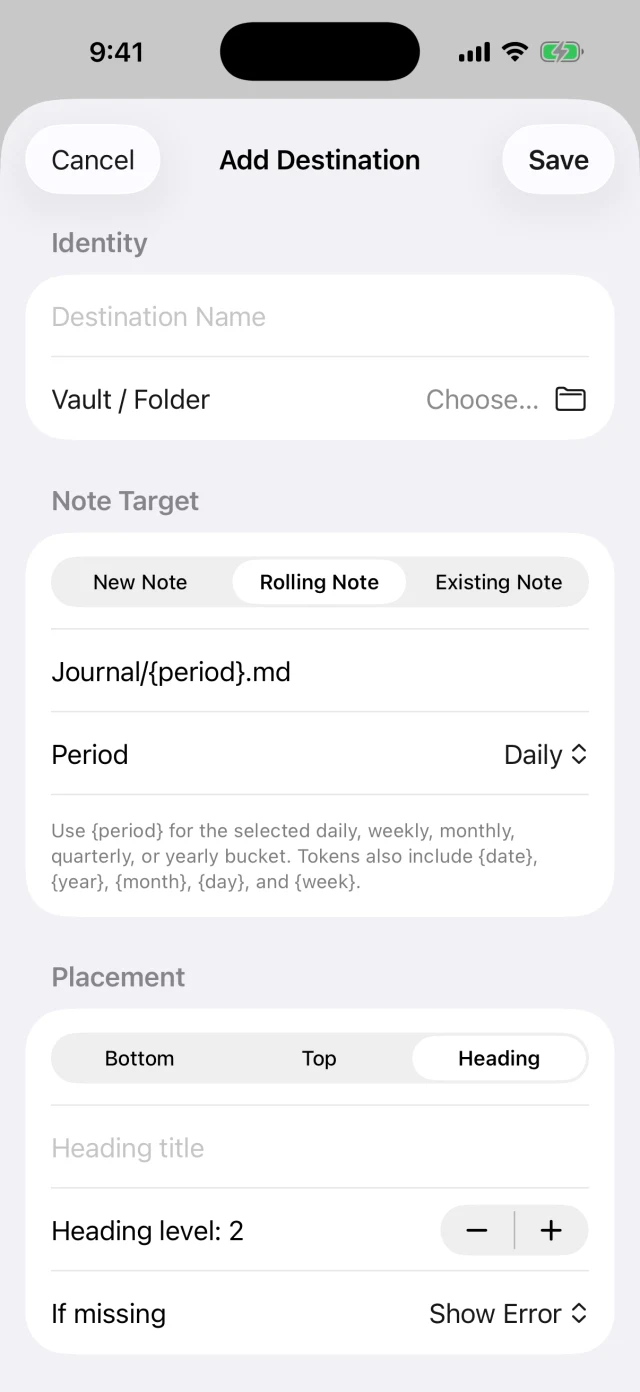
Start with three simple recipes: a bullet under Inbox, a timestamped journal entry, and a checkbox under Tasks. Configure the destination and entry prefix in a Vox.md Capture Preset. Keep your existing daily-note path and choose one place to add each formatting marker.
The examples below are plain Markdown structures and preset settings, not files that automatically import a Vox.md preset. Paste a note structure into a note when needed; enter path and prefix settings in the destination editor. The displayed results are illustrative.
Recipe 1: a simple capture inbox
Use an Existing Note target such as Inbox.md, or a daily Rolling Note if you want a new inbox file for each day. Choose Heading placement under a level-two Inbox heading and insertion at the end of that section.
A minimal note structure is:
## InboxChoose Keep Original processing. In the destination’s entry formatting, set the prefix to a dash followed by a space:
- A short capture containing “Review the draft outline” can then produce:
## Inbox
- Review the draft outline
Enter the prefix in the setting, not in every captured thought. If your captured text already starts with a bullet, check the output rather than adding another marker blindly. For missing headings, choose Create Heading or Show Error according to your preference.
Recipe 2: a timestamped daily journal
Use a daily Rolling Note and match the filename convention already used by your vault. For files like Journal/2026-10-26.md, a path pattern is Journal/{period}.md with the daily period. Choose a level-two Journal heading and insertion at the end of its section.
Keep the captured prose unchanged and use this entry prefix for a compact timestamp:
- **{hour}:{minute}** For a capture made at 14:05, an illustrative section is:
## Journal
- **14:05** A short walk helped me settle on the next step.
The hour and minute tokens are expanded by Vox.md’s entry formatter. A note-level template file can supply the surrounding headings, while the entry prefix formats each capture. Keep those responsibilities separate so later entries do not repeatedly insert the entire daily-note structure.
For detailed route configuration, see daily-note paths and heading placement.
Recipe 3: a compact task list
Choose an Existing Note or daily Rolling Note with a level-two Tasks heading. For short typed tasks without text processing, use Keep Original and this prefix:
- [ ] Two captures can then form:
## Tasks
- [ ] Review the draft outline
- [ ] Send the reading list
If you enable Todo Checklist processing instead, let processing own the checklist markers. Do not also configure a duplicate checkbox prefix. Typed and mixed-text processing is a separate opt-in; voice processing and a typed composer are not interchangeable settings.
A task is only useful if its words are right. For voice captures, review the transcript when a recognition mistake could change the instruction. The iPhone voice guide explains Add to Draft and Send Immediately.
The free download includes 10 successful Capture deliveries and 15 transcription minutes. Unlimited use is a one-time lifetime purchase.
Use the right token syntax
Vox.md path and entry settings use tokens such as {period}, {date}, {hour} and {minute}. These examples are not Obsidian Core Templates or Templater expressions. Use a template system’s own syntax in that system’s settings.
Use {hour}:{minute} for the colon-separated time shown here. Vox.md’s {time} token is a compact time value, so it should not be substituted into the recipe with the assumption that it has the same presentation.
Capture content is not a template editor. A token written in a thought can remain literal text; configure token expansion in the destination’s supported formatting settings. See the token and template reference for the available fields.
If you add YAML metadata, distinguish note-level frontmatter from fields intended for each rolling-note entry. A property on the whole file is not automatically a separate property for each journal entry. Begin without extra metadata, then add it when you know how you will query it.
Check the result before reusing a preset
- Confirm that the destination preview matches the intended file.
- Send a short typed capture with the selected preset.
- Open the file in Obsidian and inspect the heading and prefix.
- Send a second capture and check order, spacing, and repeated markers.
- Only then add voice, attachments, optional processing or metadata.
These recipes can coexist in one daily file under separate headings. For an accessible folder, the same preset can also accept a transcript delivered from the Watch-to-iPhone capture workflow. Keep folder permissions and file-provider availability in mind when a capture remains pending.
Keep the format predictable.
Leave room for the thought.
Start with one heading and one prefix. Add more structure only when it helps you use the captured note.