In Vox.md, connect a Capture Preset to an Obsidian vault folder, prepare a local transcription backend, and record in Quick Capture. Send the transcript to a new Markdown note or append it to an existing or daily note. No Obsidian plugin or Vox.md account is required.
Obsidian also has native capture tools. Check the built-in option below before installing another app. Vox.md is useful when you want its capture presets, local speech model choices, and text, media, and voice in the same workflow.
Try 15 minutes of transcription and 10 successful Capture deliveries. Unlimited use is a one-time lifetime purchase; the App Store shows your regional price.
Before you start
- An iPhone running iOS 17.6 or later. Available speech backends depend on your device, OS, and language. Live Apple Speech requires a supported iOS 26 device and language.
- A vault folder you can select through Files. Vox.md needs permission to write to that folder. A vault visible inside Obsidian is not necessarily exposed to other apps through Files.
- A prepared transcription backend. Automatic may need language preparation; optional Whisper or Parakeet models need an initial download. Prepare this while connected before relying on offline transcription.
- Microphone permission. The keyboard is optional for this guide. You can record in the main app without enabling a custom keyboard or Full Access.
If you use Obsidian Sync, check whether your vault folder is accessible in the Files picker. Vox.md writes files; it does not connect to Obsidian Sync as a service. Do not change an existing sync setup or combine sync providers just to follow this guide.
1. Connect your Obsidian vault
- Open Vox.md. In Quick Capture, select a Capture Preset. You can use an existing preset or create one under Settings → Capture Presets.
- Choose Set up destination if the preset has no destination. Use the Files picker to select the folder containing your vault’s Markdown files.
- Start with a New Note target so each capture creates its own file. Choose an inbox subfolder if you want these notes together.
- Check the destination preview before saving. For your first capture, use Keep Original processing so the transcript is not rewritten by an optional processing step.
The preset remembers the destination. Later captures can use the same route. See the preset and destination reference for templates, attachment folders, and insertion rules.

2. Prepare local transcription
Open the model settings and choose a backend supported by your phone and language. Vox.md supports Apple Speech and optional Whisper and Parakeet models. Finish any preparation or model download before making your first recording.
With Automatic on supported iOS 26 devices, Apple Speech can display text while you record. Explicit Whisper and Parakeet models transcribe after recording stops. A live preview is not required to save a voice note.
On-device transcription does not require a cloud transcription account. Model availability, recognition quality, and processing time vary. Read the model requirements and preparation steps if your preferred backend is unavailable.
3. Record and save a voice note
- Select your configured preset in Quick Capture. Before recording, choose Add to Draft in the voice controls so you can review the first transcript, then start recording.
- Say a short thought, such as “Remember to book the dentist.” Stop the recording when you finish.
- With Add to Draft selected, wait for the transcript, correct recognition errors in the composer, then tap Send. If you choose Send Immediately before recording instead, the preset routes the transcript when recording finishes.
- Confirm delivery in Vox.md, then open the destination folder in Obsidian and check the new note.
For a plain transcript with Keep Original processing, the note body could look like this. This is an illustrative example, not a promise of exact recognition or punctuation:
Remember to book the dentist.Your filename and any frontmatter come from the preset. You can retain the source audio when you want it as an attachment; a transcript does not need an audio attachment to be useful in Obsidian.
The keyboard follows a separate path: it inserts dictated text into the active text field. To route voice through a Capture Preset into a Markdown file, use the capture workflow described here. See the private iPhone keyboard guide for dictation in other apps.
Send voice to a daily note or heading
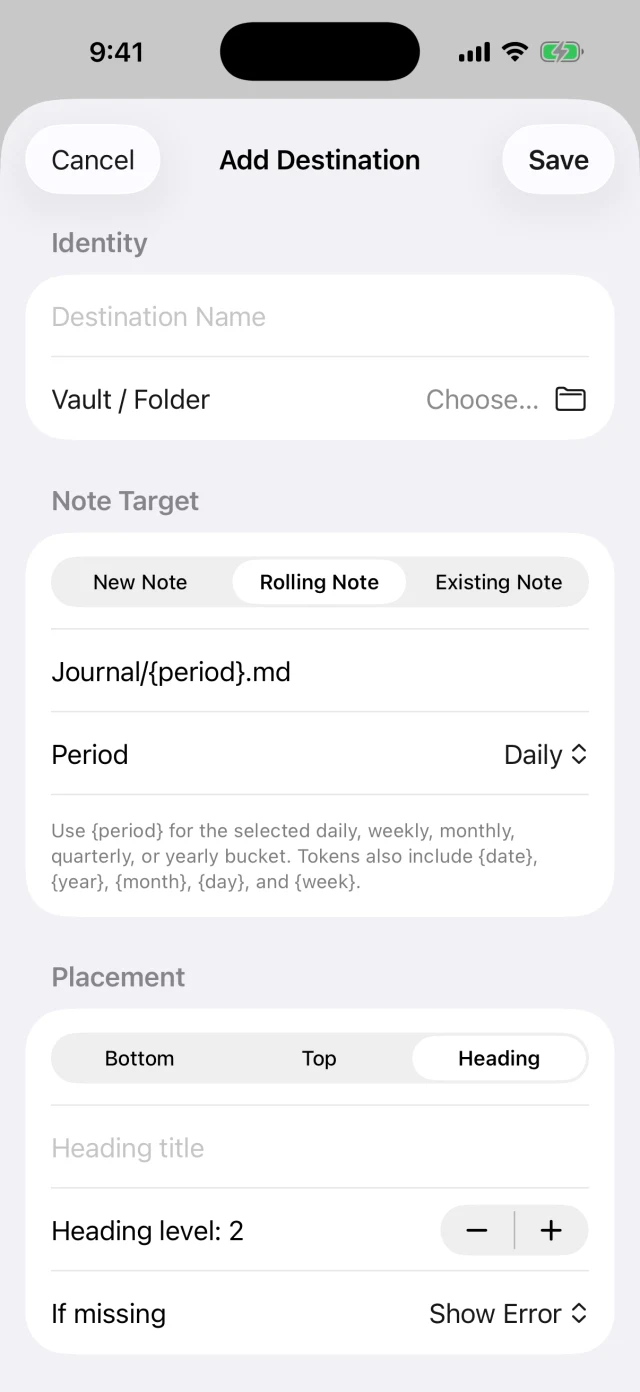
Once a new-note capture works, edit the preset’s destination to use a Rolling Note with the daily period. Match the folder and filename format that your Obsidian daily notes already use. Vox.md does not discover your Daily Notes plugin settings automatically.
To keep dictated tasks together, choose insertion beneath a level-two Tasks heading. Choose whether Vox.md should create that heading when it is missing, and whether entries belong at the beginning or end of the section. A task-oriented preset can use Todo Checklist processing; use Keep Original for prose.
For example, a daily task preset targeting Journal/2026-10-26.md could produce:
## Tasks
- Remember to book the dentist.
This example shows a configured output, not a default format. Keep your existing date convention and review the destination preview so you do not accidentally create a second daily note. For a single ongoing inbox instead, choose an Existing Note and append there.
When built-in Obsidian is enough
Obsidian’s official iOS guide documents native Quick Capture in version 1.14 or later on iOS 26 or later. It can create or update notes from widgets and Shortcuts. If you only need basic text capture into your vault, start there.
The October 22, 2026 announcement for Obsidian 1.15 mobile early access also adds voice transcription and saved recordings, including capture from the Lock Screen on iOS 26. As of this guide’s October 26 update, that announcement is for the early-access channel; check your installed version for availability.
Choose Vox.md when you want its combination of local speech backend choices, configurable capture processing and routing, and mixed text, photos, scans, files, and voice. You can also use it with a writable Markdown folder that is not an Obsidian vault. Neither app needs to replace the other: Obsidian can remain where you organize and read your notes.
Troubleshooting and offline use
The vault does not appear in Files
Confirm that the folder is exposed through an available file provider and can be selected by another app. If it is not accessible, use a writable folder and move a sample Markdown note into Obsidian manually to evaluate the workflow. Do not assume that an Obsidian Sync vault is available to Vox.md.
The transcript is missing or inaccurate
Check microphone access, backend preparation, and language support. Apple Speech live text depends on supported OS and device combinations; downloaded models may work differently. Review important text before sending. See Models & Transcription for the available options.
A capture is pending or could not be saved
Check destination permissions and file-provider availability. Review the pending or failed item and retry after fixing the destination instead of making another capture of the same thought. Vox.md retains pending delivery data for recovery. See delivery troubleshooting.
Can I do this offline?
Voice transcription runs on your device after backend preparation. Writing the note also depends on the selected folder being locally available and writable. A cloud-backed folder can need connectivity for file access or later synchronization. Local transcription does not mean that your chosen sync provider never receives the finished note.
Does a voice note use both free allowances?
A voice transcript routed to Markdown uses the transcription allowance rather than also using a Capture delivery. The free download includes 15 transcription minutes and 10 successful Capture deliveries for other capture workflows. Unlimited use is a one-time lifetime purchase.
Your next thought can land in the right note.
Connect a folder, prepare local transcription, and try a short voice capture before building a more detailed preset.
Free allowances · no account required · one lifetime unlock
Choose between iPhone capture methods, or compare native Obsidian with Vox.md.