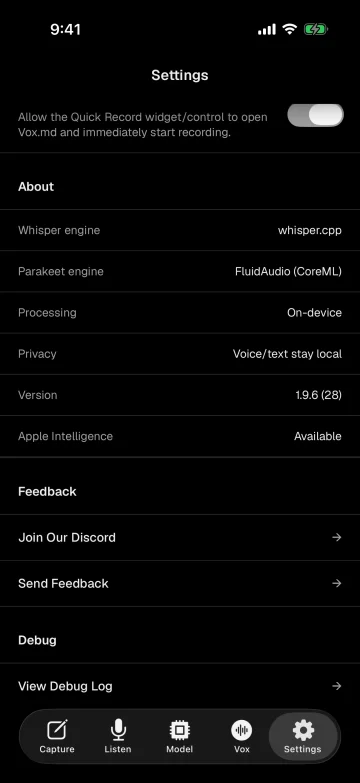
Vox.md transcribes on your device using an available Apple Speech backend or an explicitly downloaded Whisper or Parakeet model. To save the transcript as Markdown while offline, you also need a locally available, writable folder. Prepare both before disconnecting.
“Local transcription” describes where recognition runs. It does not promise that a model is already installed, every language is supported, or a cloud-backed folder is available offline. This guide explains the setup and a check you can perform on your own phone; it is not a report of an airplane-mode test on every supported device.
1. Prepare a speech backend while connected
Open Vox.md’s model settings and choose a backend available for your device and language. Automatic prefers Apple Speech on supported iOS 26 devices and languages. Optional Whisper and Parakeet models are downloaded when you choose them.
Finish any model download or system-language preparation before going offline. Automatic does not silently download a Whisper or Parakeet fallback; it can only use a fallback model you have already chosen to download. If no backend is ready, disconnecting will not make one available.
Explicit Whisper and Parakeet selections transcribe after recording stops. Live Apple Speech can show tentative and finalized text on supported devices. A live preview is not required to produce a Markdown transcript.
Model choice changes storage use, processing time, language coverage and recognition quality. Check the model reference instead of assuming that a larger model is supported or that one option recognizes every language.
2. Choose the Markdown destination
Create or select a Capture Preset and connect it to a folder through Files. Use a New Note target for the first test so the output is easy to identify. Keep Original processing is a useful starting point when you want the transcript without an optional rewrite.
Make sure the destination is locally available and permits writes. A folder name appearing in Files does not necessarily mean its contents are downloaded. If you choose an Obsidian vault, it must be accessible to Vox.md through the picker; Vox.md does not connect directly to the Obsidian Sync service.
For detailed folder setup, follow save iPhone voice notes to Obsidian. A plain writable Markdown folder works too; Obsidian is not required for transcription.
Try 15 transcription minutes and 10 successful Capture deliveries. Unlimited use is a one-time lifetime purchase. Configure purchases or model preparation while connected rather than relying on a new setup completing offline.
Starting with Apple Voice Memos? Follow the Voice Memos transcript and audio export chooser before importing the recording.
3. Record or import audio
- Open Quick Capture and select the preset with your prepared destination. Choose Add to Draft in the voice controls before starting so you can review the first transcript.
- Record a short voice note, or use Import audio or video in the voice controls to select an existing supported file.
- Let the selected backend finish recognition, review the transcript in the draft, then tap Send.
- Check that delivery completed, then open the Markdown file in its destination.
A short recording might produce this illustrative note body:
Review the outline before the next meeting.The actual wording and punctuation depend on recognition and processing. Retain the source audio when you need a reference, and check important transcripts against it. Optional cleanup has its own device requirements and fallbacks; on-device transcription does not mean Apple Intelligence processing is available on every supported phone.
Check the complete workflow offline
After a successful connected capture, repeat a small test without connectivity. If you use Airplane Mode, confirm that Wi-Fi is also off.
- Confirm the chosen backend was prepared and the destination is locally available.
- Disconnect, make a new short recording, and wait for transcription.
- Review and send the transcript. Check the completed Markdown file while still disconnected.
- Reconnect when you are ready, and separately check any sync to another device.
For an imported recording, prepare the source file too: download it while connected, then confirm it opens while offline. Repeat the import-and-save check with a short non-sensitive sample; a successful new recording does not test access to an existing file.
Success means both recognition and the local write completed. A transcript visible in a draft proves recognition worked; a queued capture does not yet prove that the destination write worked. If delivery fails, keep the recoverable capture and retry after restoring folder access rather than making another copy of the recording.
Understand privacy and availability limits
Vox.md does not upload audio for transcription. If you deliberately save the resulting transcript or retained audio in a cloud-backed folder, that provider can handle synchronization under its own terms. Keep the destination local if you do not want that file synced through a provider.
Long recordings, available storage, audio quality and model support affect practical results. This guide makes no universal claim about transcription speed or accuracy. Review sensitive or consequential wording before using it.
For Watch recordings, the paired iPhone still performs transcription and delivery. Keeping a recording on Watch while the phone is unavailable is delayed delivery, not independent Watch transcription.
Prepare it once.
Check it before you disconnect.
Start with a short recording and an accessible local folder, then verify the complete Markdown output.