Record your entry in Vox.md with a “Journal” Capture Preset. It transcribes on the iPhone and adds the text to today’s Markdown file (for example Journal/2026-11-19.md) in your Obsidian vault or a Files folder. Your words stay in a plain file you can open, search, back up, or move to another app.
The idea behind this guide: your journal should be a file you own. It compares four ways to keep a voice journal, then walks through a setup that takes about ten minutes.
Four ways to keep a voice journal
No approach is best for everyone. If Apple’s own apps already do what you need, use them.
| Approach | Where entries live | Transcript | Export and portability | Offline | Obsidian |
|---|---|---|---|---|---|
| Apple Journal app | Inside Journal | Apple’s guide says you can record audio and have it transcribed in a journal entry, and adds the transcript to the entry; audio transcription is listed as English only, excluding Singapore and India locales | Entries live in the Journal app | Not covered on the cited Apple page | Not covered here; Obsidian reads files in a vault folder |
| Voice Memos | Audio recordings in Voice Memos | Apple lists transcription for iPhone 12 or later, in specific languages, and says it is not available in all countries or regions | You have audio files, not a dated journal; copy or export each one | Not covered on the cited Apple page | Copy the text across, or turn memos into Markdown |
| AI journaling apps | Varies by app | Some rewrite or summarise your words with a cloud model | Varies by app | Varies by app | Varies by app |
| Vox.md | A Markdown file per day, in a folder you choose | On-device Apple Speech, or optional Whisper and Parakeet models | Plain .md files | Transcription runs on the device once a model is prepared | Writes into your vault folder |
Sources for the Apple rows: Apple Support on adding recordings and transcriptions in Journal and on viewing a Voice Memos transcription. Availability depends on your iPhone, system version, language and region.
For AI journaling apps, this guide makes no claim about any particular product. Before you pick one, read its privacy policy and look for where the audio is processed, who can read the transcript, and whether you can export everything.
Why a plain-file journal lasts
- Portable. A
.mdfile opens in Obsidian, Files, a text editor, or whatever replaces them. - Searchable. Use Obsidian’s search, or search the Files app, for a word across years of entries.
- Backed up your way. Your folder follows whatever sync you already use, such as iCloud Drive, Obsidian Sync or Git.
- No lock-in. If you stop using Vox.md, the files stay where they are.
If you use Obsidian, its Daily notes plugin opens a note named for today’s date. Match that filename convention and your voice entries land in the same note.
Set up a Journal preset (once)
- Open Settings → Capture Presets in Vox.md and create a preset named Journal.
- Connect its destination folder through Files: your Obsidian vault folder, or a plain
Journalfolder. It must be writable. - Choose Rolling Note with the Daily period, and set the path to
Journal/{period}.md.{period}becomes the date, such as2026-11-19. To give those daily notes a template, use the Obsidian daily note template generator. - Set placement to Heading with a level-two heading named Entries, inserted at the end of its section (or choose Bottom). Let Vox.md create the heading if it is missing.
- In entry formatting, use a prefix that stamps the time, for example
- **{hour}:{minute}**. - Set processing to Keep Original, so your words are not rewritten.
- Optionally, change the preset’s prompt: the line shown in an empty composer. A one-line question works well.
For path matching and heading placement in depth, see append to an Obsidian daily note. For models and backends, see iPhone voice notes to Obsidian. For more entry prefixes, see capture templates.
Recording, transcription and Capture need Vox.md Unlimited: a weekly or yearly subscription with a 7-day free trial for eligible accounts, or a one-time lifetime purchase. The App Store shows your local price.
Record an entry
- Open Quick Capture and choose the Journal preset.
- Choose Add to Draft in the voice controls, then record and stop.
- Review the transcript in the draft and fix any recognition errors.
- Tap Send.
Open today’s file to confirm the entry. Once you trust the route, you can choose Send Immediately instead.
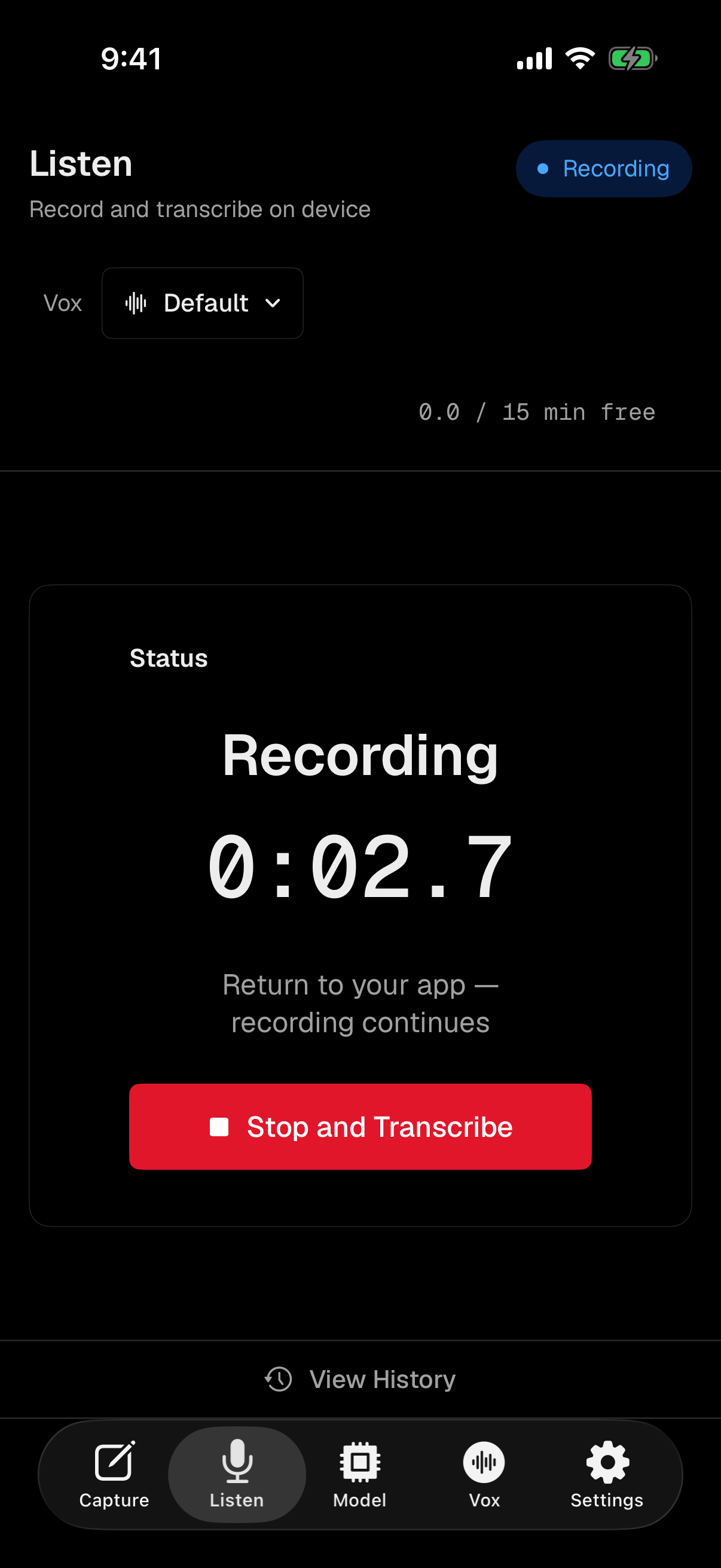
Quicker ways in include the Home Screen or Lock Screen widget, Control Center, Shortcuts, and Apple Watch. The Apple Watch guide covers journaling from your wrist; the paired iPhone still transcribes and writes the note.
What a day looks like
This is illustrative output for the settings above. Your times, words and existing note content will differ.
# 2026-11-19

## Entries
- **08:10** Slept badly, but the morning walk helped. Want to finish the draft today.
- **21:40** Finished the draft. Tomorrow: send it to Sam and take a day off.
What stays on the phone
- Transcription is local. Vox.md does not upload audio for transcription.
- Audio and drafts stay on the device.
- The text goes only to the destination folder you configured. That folder’s own sync, such as iCloud Drive or Obsidian Sync, then controls where it goes next.
- Optional Apple Intelligence cleanup also runs on the device. Leave Use Apple Intelligence off, with Keep Original, if you want verbatim entries.
- History stores coarse metadata, not note text.
Model downloads need a connection. Read more in the docs.
Journaling without a connection
Download a speech model while you are online, then test with a short entry in Airplane Mode before you rely on it. The offline transcription guide has the full check, including making sure the folder is available locally.
Make it a habit
- Pick a regular time, such as after dinner, and record then.
- Put a one-line prompt in the preset, so an empty composer asks you something.
- Keep entries short. A minute is enough.
- Use the same preset every time, so everything lands in one file per day.
- Once a week, read the last seven files in Obsidian and note what you want to follow up.
Questions
Is my voice journal private?
Transcription runs on your iPhone and Vox.md does not upload audio for it. The finished text goes to the folder you chose, and that folder’s sync provider, if any, handles it under its own terms.
Can I use it without Obsidian?
Yes. Any folder you can pick in the Files app works, and the entries are plain Markdown.
Does it cost anything?
Recording, transcription and Capture need Vox.md Unlimited: a weekly or yearly subscription with a 7-day free trial for eligible accounts, or a one-time lifetime purchase. The App Store shows your local price.
Can I journal from Apple Watch?
Yes. Pick the Journal preset on the Watch and record; the recording transfers to your iPhone, which transcribes it and writes the entry. See the Apple Watch guide.
Your journal, as a file you own.
Set up the preset once, then talk.
7-day free trial · no account required